

How to Use a Discount Code Step by Step on Couponatkom

A discount code works the same way in most stores: copy it, add your items, and paste it in the code box before you pay. But people get stuck on small things: where the box actually is, why the store rejected the code, and whether it works in the app and on the website. This guide shows how to use a promo code step by step, with examples from stores in different categories and codes that are active right now on Couponatkom.
Steps to use a discount code
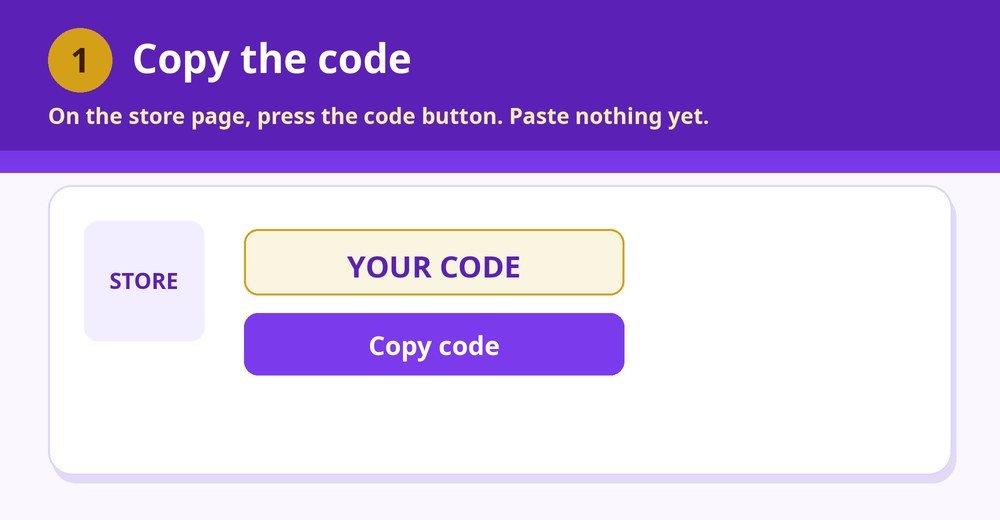
Step 1: copy the code
On the store page on Couponatkom, such as Nice One or Noon Saudi Arabia, choose the code shown and press it to copy. Keep it exactly as shown: no spaces before or after, and the same letter case.
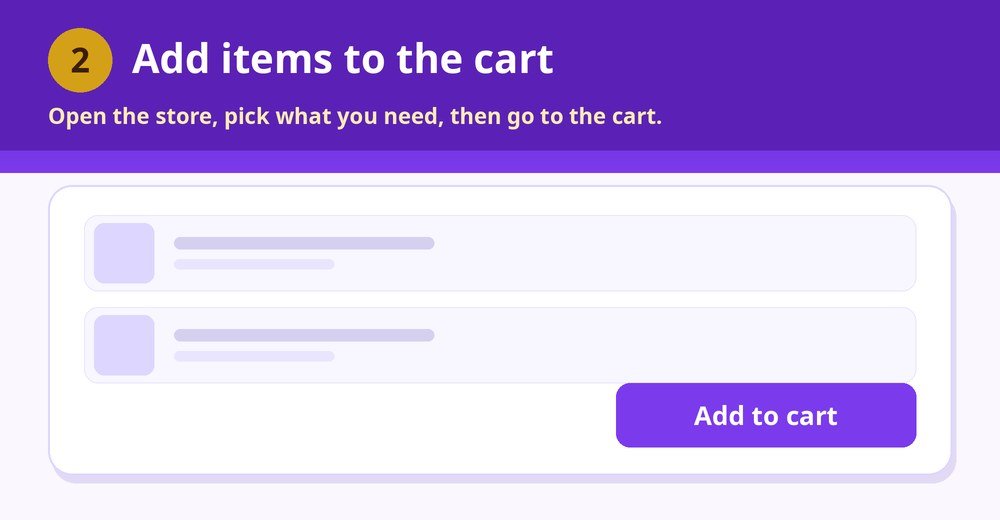
Step 2: add items to the cart
Open the store from the Couponatkom button, then choose your items, size and color. Some codes need you to enter the store through the link before you add to the cart.
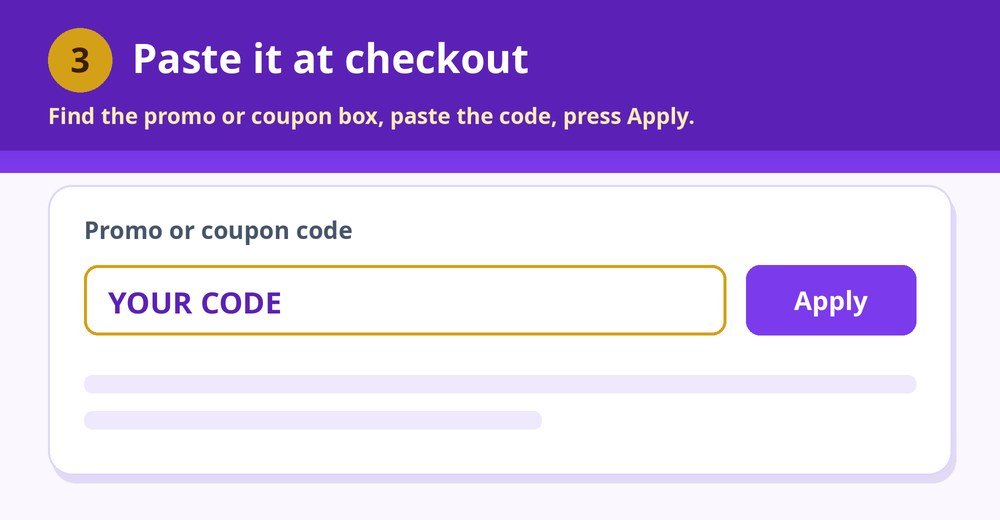
Step 3: paste the code in the promo box
In the cart or at checkout, look for “promo code”, “coupon” or “voucher”. Paste the code and press Apply.
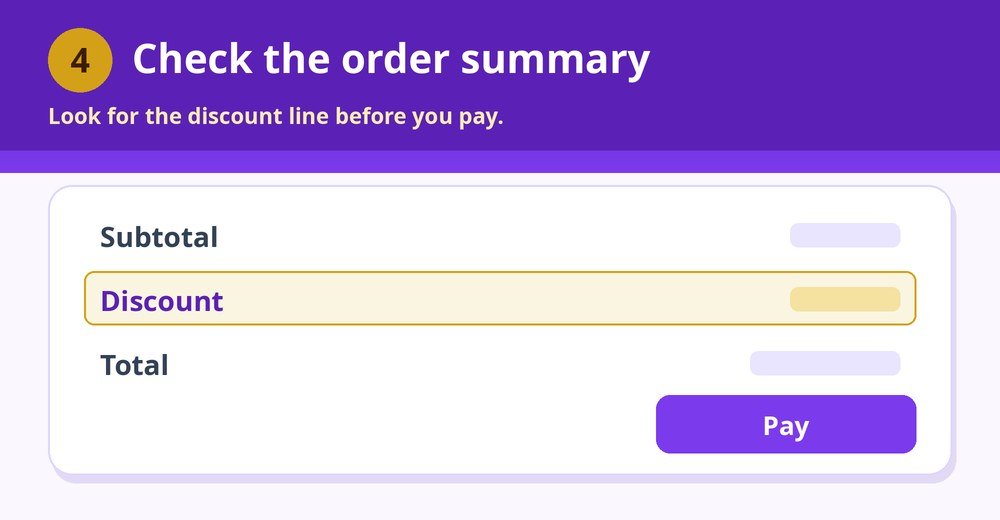
Step 4: check the order summary
Make sure a discount line shows in the summary before you pay. If it does not, the code has not been applied.
Examples from stores in different categories
The codes below are read live from Couponatkom data and show only while active. Each store sets its own terms.
Fashion example: Namshi
In fashion stores the code box is often in the cart, before the checkout button. Try the code after you choose your size.
- Namshi
ORFC11155WRW1Store page and codes
Electronics and marketplace example: Noon
Big marketplaces sell from different sellers, and a code may not cover every seller. Read the code terms at the store.
- Noon Saudi Arabia
YXXY1MCX56NG33Store page and codes
Beauty and care example: Nice One
In beauty stores, check which products are covered before you apply the code, since some brands can be excluded.
- Nice One
M16MP20Store page and codes
Perfume example: Reef
For perfumes, check which brands are covered and the size you picked, then paste the code in the cart code box.
- Reef
PLT16MXC19Store page and codes
Common problems and fixes
Where do I enter a promo code?
In the cart or on the checkout page. The cart lists your items, and checkout is where the address and payment are. Some stores put the box in the first, some in the second. If you cannot find it, look for a link like “Have a promo code?”.
The code is not accepted. What now?
- Make sure you pasted the code with no spaces before or after it.
- Check the code terms at the store. Some codes exclude items or brands, or need a minimum order.
- Check that the country and currency selected at the store match the code terms.
- Try another code from the store page if there is one.
Minimum order
Some codes only work once the cart reaches an amount set by the store. Add an item you actually need, or read the code terms.
App or website?
Some codes are for the app only or the website only. If a code fails in one, try the other and read the code terms.
Expired or one-time codes
A code can expire, or work once per account or for new customers only. Read its terms at the store, and try another code from the store page.
Country and currency selector
Codes usually belong to one country store. Choose the country (for example Saudi Arabia) at the top of the store site before you apply the code.
Code terms and end dates are set by the stores and can change, so check them at the store before you pay.
To plan ahead for the big sales, read the Sale Season Calendar for Saudi Arabia and the Gulf, or browse all stores and the seasonal sales page.
🎟️ Active store coupons and offers today
Click "Copy code" to go to the store page, and review the offer terms before you pay.
Exclusive instant savings offer from the store
Get the highest discount rate and instant savings when you complete your purchase today.